# How to Containerize Spring Boot & Postgres (JDBC)
Today, I am going to show you how you can use Docker to containerize a Spring Boot application, start a Postgres SQL database, and wire it all together by using a JDBC connection! This is a quick and seamless way to prototype new ideas. You can get this started with one command!
**TLDL** - Here is a link to my [GitHub](https://github.com/fourgates/blog-spring-boot-postgres-jdbc-docker) with all my Code.
🐦 Follow me on [Twitter](https://twitter.com/ninan_phillip) to see even more content! 🐦
Here is a look at what your file structure should look like at the end:
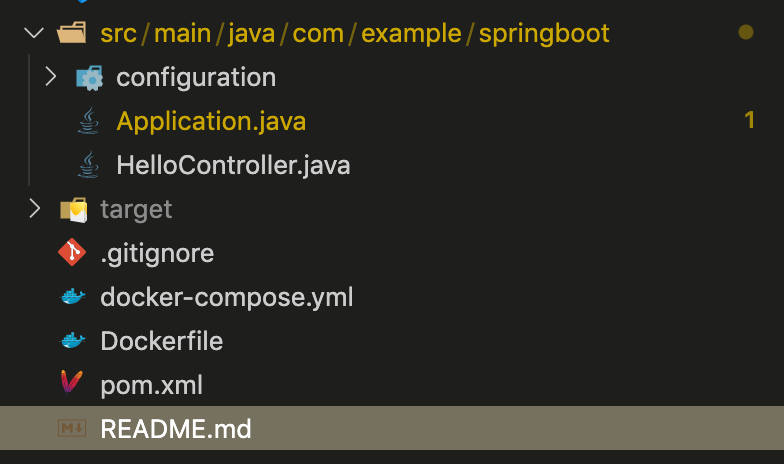
## 1. Checkout and (Optionally) Run Spring Boot App
**Note:**
***If you cannot run the app or don't have Maven installed it's not a big deal. We will get it running in the container! I just typically like to be able to run an app outside of a container before I containerize it. This helps me debug issues if the app does not run as expected in the container.***
First, let's create a new Spring Boot project. Checkout the following Spring Boot starter app:
`git clone https://github.com/fourgates/blog-spring-starter.git`
Finally (optionally), start the project using Maven:
`mvn spring-boot:run`
Navigate to http://localhost:8080 or `curl localhost:8080` and you should see the following message:
> Greetings from Spring Boot!
## 2. Add Dependencies to `pom.xml`
Next, we are going to some dependencies to the project.
```
org.postgresql
postgresql
42.2.6
org.springframework.boot
spring-boot-starter-jdbc
```
What are these new dependencies?
- `postgresql` - This is a Postgres driver
- `spring-boot-starter-jdbc` - This is a JDBC driver to be able to communicate with a DB
## 3. Create a DataSource
Create `SqlConfiguration.java` in `com/example/springboot/configuration`:
```
package com.example.springboot.configuration;
import javax.sql.DataSource;
import org.springframework.beans.factory.annotation.Value;
import org.springframework.context.annotation.Bean;
import org.springframework.context.annotation.Configuration;
import org.springframework.jdbc.datasource.DriverManagerDataSource;
@Configuration
public class SqlConfiguration {
@Value("${POSTGRES_USER}")
private String user;
@Value("${POSTGRES_PASSWORD}")
private String password;
@Value("${POSTGRES_DB}")
private String db;
@Bean
public DataSource primary() {
DriverManagerDataSource dataSource = new DriverManagerDataSource();
dataSource.setDriverClassName("org.postgresql.Driver");
dataSource.setUrl("jdbc:postgresql://spring_dev_db:5432/" + db);
dataSource.setUsername(user);
dataSource.setPassword(password);
return dataSource;
}
}
```
A couple of notes here:
- `@Configuration` - This is a Spring Boot annotation that will initialize this class before the app starts.
- ` @Value` - These values are going to get populated from environment variables
- `spring_dev_db:5432` - This is going to be the containerized DB we are going to run with our Spring Boot container. `5432` is the port we are going to use.
## 4. Update `HelloController`
Next, we are going to add a very crude example demonstrating a JDBC connection with out containerized database.
```
package com.example.springboot;
import org.springframework.web.bind.annotation.RestController;
import org.springframework.beans.factory.annotation.Autowired;
import org.springframework.jdbc.core.JdbcTemplate;
import org.springframework.web.bind.annotation.RequestMapping;
@RestController
public class HelloController {
@Autowired private JdbcTemplate jdbcTemplate;
@RequestMapping("/")
public String index() {
// simply query to count the number of tables in our DB
int result = jdbcTemplate.queryForObject("select count(*) from information_schema.tables", Integer.class);
return "Greetings from Spring Boot! table_count = " + result;
}
}
```
What did we do here?
- `@Autowired` - This injects a `Bean`
- `private JdbcTemplate` - This is an interface to communicate with our DB
- `jdbcTemplate.queryForObject(...)` - Here we are simply making a query to demonstrate we have connectivity with our DB
## 5. Create a `Dockerfile`
Almost done! Let's create a `Dockerfile` to create a container to run our Spring Boot app inside of.
```
### BUILD a maven builder. This will contain all mvn dependencies and act as an abstraction for all mvn goals
FROM maven:3.5.4-jdk-8-alpine as builder
# create app folder for sources
RUN mkdir -p /build
RUN mkdir -p /build/logs
# The WORKDIR instruction sets the working directory for any RUN, CMD, ENTRYPOINT, COPY and ADD instructions that follow it in the Dockerfile.
WORKDIR /build
COPY pom.xml /build
#Download all required dependencies into one layer
RUN mvn dependency:resolve && mvn compile
```
## 6. Create `docker-compose.yml`
Now we bring everything together with the `docker-compose` file! This file will start up our maven container for our Spring Boot app and another container with Postgres database.
```
version: "3.7"
services:
spring_dev:
build:
context: .
image: maven/builder:0.0.1
container_name: spring_container_api
ports:
- "8080:8080"
environment:
- POSTGRES_USER=docker
- POSTGRES_PASSWORD=docker
- POSTGRES_DB=docker
volumes:
- "./src:/build/src"
- "./target:/build/target:cached"
command: "mvn spring-boot:run"
depends_on:
- spring_dev_db
spring_dev_db:
container_name: spring_dev_db
image: "postgres:12"
ports:
- "5432:5432"
environment:
- POSTGRES_USER=docker
- POSTGRES_PASSWORD=docker
- POSTGRES_DB=docker
volumes:
- spring_dev_data:/var/lib/postgresql/data
volumes:
spring_dev_data: {}
```
A few things worth noting here:
- `depends_on` - We use this here because out web app needs the database to start before the app
itself starts
- 'spring_dev_db' - This is the name of the database container
- `image: "postgres:12"` - This is an official Postgres image we are pulling
- `ports` - What ports we want to map
- `environment` - This is a VERY important part. When the database starts up these are the credentials that will be created. Additionally, a database named `docker` will be created.
- `volumes` - The first instance volume says we will be using a volume named `spring_dev_data` to persist data when the container is restarted. The second instance, `spring_dev_data: {}`, simply initializes the volume.
## 5. Start the App
That's all the code we need! You just need to run a few commands and your app should be up and running!
```
docker-compose build
```
```
docker-compose up
```
Navigate to http://localhost:8080/ and you should be greeted with a message telling you how many tables are in our database!
Here is a look at what your file structure should look like:

## Conclusion
This was a very rudimentary example of using Docker to start up a Spring Boot app with a Postgres SQL database and a JDBC connection. There are many ORM alternatives to use to better handling the middle tier of selecting objects from the database. I will be covering them in future posts. This should provide a solid base to get up and started VERY QUICKLY when developing a Java web application using Spring Boot.
Here is a link to my [GitHub](https://github.com/fourgates/blog-spring-boot-postgres-jdbc-docker) with my all Code.
🐦 Follow me on [Twitter](https://twitter.com/ninan_phillip) to see even more content! 🐦